
AI Logo Maker, AI Design: Hexa
Superapp LabsArt & Design
4.4344.00 Reviews
- Version
- 3.0.1
- Installs
- 1.00M
- Age Rating
- Everyone
Screenshots


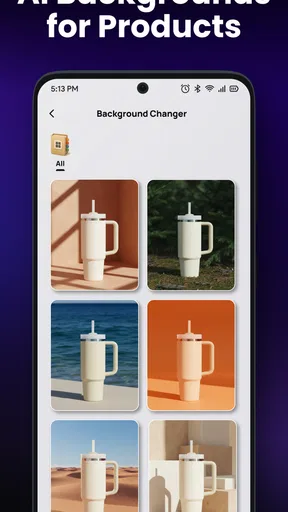
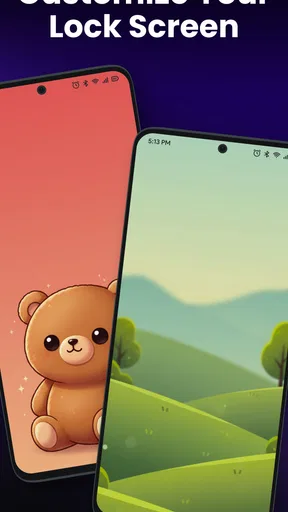

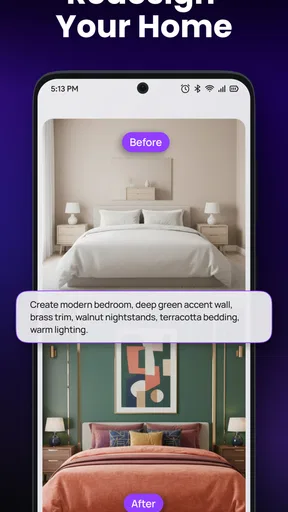
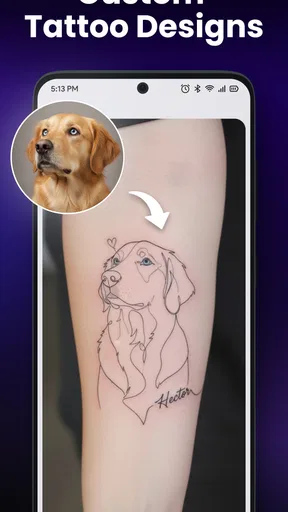
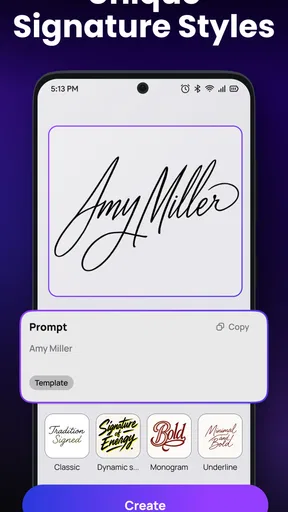
Our Review of AI Logo Maker, AI Design: Hexa
 Analysis by Appyee
I’d judge a mobile design app not only by the ideas it can produce, but by how well it fits into the stop-and-start rhythm of everyday work. That matters with Hexa because inspiration can arrive anywhere, while a finished logo usually needs more attention than a quick tap. In my experience, it is most useful when I treat it as a place to explore and refine a direction, rather than expecting one prompt to deliver a final, print-ready identity.
Where a connection shapes the workflow
AI-assisted design naturally makes connectivity part of the experience: generating suggestions is different from simply moving a shape or changing a color. I would plan to use those creative prompts when I have a dependable connection, then spend quieter moments reviewing the composition and making deliberate edits. If service is inconsistent, it is sensible to avoid beginning a time-sensitive design that depends on a fresh suggestion arriving at just the right moment.
That distinction also helps set expectations. Hexa brings together assisted ideas and hands-on editing, so the whole workflow is not just a conversation with an AI. I find that balance appealing: a suggestion can help me get past indecision, but the final choice of type, spacing, and color still deserves a human eye. A generated direction is a starting point, not a substitute for checking whether the design actually suits its intended use.
Using it in the gaps of a busy day
On a phone, the app makes the most sense for compact tasks: testing a visual direction, adjusting a small graphic, or making a first draft before sitting down to do more careful work. For example, if I were helping a friend prepare a simple identity for a weekend market, I could use a spare moment to compare a few ideas, then return later to check the lettering and balance before sharing anything. That is a more realistic use than trying to finish every detail while walking between errands.
Small-screen editing has a trade-off. Touch controls are handy for moving elements around, but close spacing and fine alignment can be harder to judge on a phone than on a larger display. I would zoom in for detail work where possible and step back to inspect the full design before deciding it is finished. That quick change in viewing scale can reveal whether an icon feels crowded or whether the name is still easy to read.
Making a draft useful beyond the app
A useful habit is to decide the design’s job before choosing a style. A logo for a social profile needs to remain recognizable at a small size; a graphic intended for a printed sign has different demands. I would test a draft against its real destination rather than trusting a polished preview. In particular, check that the main mark and wording still read clearly when the design is reduced, and avoid relying on tiny decorative details to carry the identity.
That practical check is also where an all-in-one mobile editor differs from a more traditional desktop design workflow. Hexa can bring idea-making and editing together in one place, which is convenient when speed and accessibility matter. A dedicated desktop tool may be a better choice for precise vector construction, established brand guidelines, or a production handoff that needs close control. I would use Hexa to explore options and make a first pass, but would not assume every draft is automatically ready for professional printing or a full brand system.
For a first-time creator, that lower-friction start can be valuable: you can explore visual choices without beginning from an empty page. For a designer who already has a clear concept, the same suggestions may feel unnecessary, and a specialist editor may offer a more direct route. The best fit depends on whether you want help getting ideas moving or need exact control from the outset.
Have you ever been stuck on a design project, staring at a blank canvas, wishing you had a personal designer in your pocket? Well, let me introduce you to AI Logo Maker, AI Design: Hexa. This app is like having a creative genie at your fingertips, ready to help you conjure up stunning logos and designs with just a few taps. Let me walk you through my experience with it.
Getting Started with a Bang
From the moment I launched the app, I was impressed by its sleek and user-friendly interface. It’s designed to be intuitive, so you don’t need to have a design degree to navigate it. The app greets you with a variety of templates and design options that cater to different needs—whether you're creating something for a business, a personal project, or just experimenting for fun.
The first thing that caught my attention was how easy it was to start a new project. After opening AI Logo Maker, AI Design: Hexa, I was able to choose from several pre-set categories like business, tech, art, and more. This helps narrow down the style and feel of the design you're going for.
Diving into the Design Features
Once you select a category, the app offers a plethora of templates. You can customize these to your heart's content. The app provides a robust set of editing tools—everything from font styles, color palettes, to icon libraries. I found the drag-and-drop functionality particularly handy. It’s smooth and responsive, which makes the design process less of a chore and more of a creative journey.
One of the standout features is the AI-assisted design suggestions. As you tweak your logo or design, the app suggests improvements or alterations. It’s like having a co-pilot who knows a thing or two about aesthetics and balance. I was pleasantly surprised by how spot-on these suggestions were. They helped me refine my designs without feeling like I was losing control over the creative process.
Exploring Advanced Options
For those who are more experienced or want to dive deeper into customization, the app doesn’t disappoint. It offers advanced editing options that allow you to manipulate layers, adjust opacity, and even add unique effects to your designs. I found the layer management tool to be particularly useful when working on complex designs with multiple elements. It’s akin to having a mini-Photoshop in your pocket.
Additionally, the app supports exporting designs in various formats. This is a huge plus if you need to ensure compatibility with other design software or if you're planning to print your designs. The ability to export in high resolution is a must-have feature that Hexa delivers flawlessly.
What to check before relying on a design
Templates and suggestions are most helpful when I give them a clear brief. For a small side business, I would first settle on the business name and the feeling I want to convey, then compare a few visual directions rather than repeatedly changing everything at once. Keeping the name, color choice, and icon concept steady while testing one variable at a time makes it easier to see what actually improves the result. It also helps prevent a promising draft from turning into a collection of unrelated effects.
I would also keep a clean version of a promising design before experimenting further. That gives me a reference point if later edits make the mark less readable or less balanced. For a logo, simplicity often travels better across profile images, labels, and other small placements than a detailed composition. A visually rich result can still be useful for a cover or a one-off graphic, but I would judge it differently from a symbol meant to represent a business consistently.
Price, audience, and practical limits
Hexa is a free Art & Design app from Superapp Labs, with in-app purchases ranging from $2.99 to $39.99 per item. I would start with the free experience and decide whether the tools fit my workflow before paying for anything. The range makes it especially important to check the purchase details in the app and consider whether a paid option solves a specific need, rather than assuming every creator will need one. It is rated for Everyone, which makes it approachable for a broad audience, though a young user should still have an adult help with purchases.
The app has a 4.5 average from around 80,000 ratings and more than a million installs, so it has attracted plenty of interest. It is currently at version 2.6.9 and requires OS 7.1 or later. Those details help with the basic decision of whether it may suit a device, but they do not replace trying the actual editing flow: the important question is whether its templates and controls match the kind of work I want to make.
Hexa is a better fit for quick concepting, personal projects, and creators who want a guided way into logo and graphic design. I would look elsewhere if I needed exact brand-system controls, detailed vector production, or a carefully managed team workflow. And if I am working somewhere with unreliable connectivity, I would save demanding AI-assisted exploration for a more reliable moment instead of building a deadline around it. That is not a knock on the app so much as a useful way to avoid friction: separate idea generation from the careful final checks.
Wrapping Up the Experience
After spending some quality time with AI Logo Maker, AI Design: Hexa, I can confidently say it’s a fantastic tool for both amateur and professional designers. The blend of AI technology with traditional design tools makes it accessible and versatile. Whether you're whipping up a quick logo or crafting a detailed artwork, this app has got your back.
So, if you’re looking for a design app that combines ease of use with powerful features, give Hexa a shot. It’s like having a design studio in your pocket, and trust me, it’s worth checking out. Plus, who doesn’t love a little design magic?
My more measured recommendation is to use Hexa for the part of design where it has the clearest advantage: getting from a blank page to several directions worth considering. A food seller preparing a weekend menu, for instance, could draft a simple mark and matching visual, then check it on the actual phone screen where customers are likely to see it. Before sharing or printing, I would still inspect legibility, alignment, and whether the artwork suits its final size. That small review is more useful than endlessly polishing a preview that may be viewed very differently in context.
When another tool is the better call
If I already know exactly what I want and need fine control over every curve, a specialist vector editor is a more natural choice than an AI-led starting point. If the task is only a quick crop or a basic text overlay, a lightweight image editor may also be faster. Hexa sits between those options: it can help me explore a look and then adjust it, but it is not automatically the right destination for every design job. I would choose it when a guided start saves time, not simply because the project contains a logo.
One final practical question is whether I can rely on a project when connectivity changes. I would avoid assuming that an AI request, a saved draft, or an export behaves identically under weak service; I’d test the steps I need before a deadline and keep a copy of any finished work in a place I can access. For data-conscious use, I would also avoid entering private client details into creative prompts unless I had checked the app’s current privacy information and was comfortable with it. That is a sensible precaution for any connected creative tool, not a claim about Hexa’s data practices.
My connectivity verdict
Overall, Hexa is most appealing when I have enough connection for assisted idea-making and enough time to judge the result with care. Its mix of templates, suggestions, and manual editing can make a first draft feel less intimidating, while layers and other controls give me room to refine it. I would recommend it to casual creators, small-business owners testing a visual identity, and anyone who likes shaping ideas on a phone. I would steer deadline-critical production, exacting brand work, and connection-sensitive sessions toward a workflow tested in advance or a more specialized desktop tool. Used with those boundaries in mind, Hexa is a practical creative companion rather than a replacement for design judgement.
Verdict
Strengths of AI Logo Maker, AI Design: Hexa
- User-friendly interface for easy navigation.
- Wide range of design templates available.
- Customizable color and font options.
- Quick logo generation with AI assistance.
- No design skills required to create logos.
Limitations of AI Logo Maker, AI Design: Hexa
- Limited free features; premium needed for full access.
- Occasional AI inaccuracies in design suggestions.
- May require internet connection for full functionality.
- Limited export formats in the basic version.
- Ads can be intrusive in the free version.
Other Releases by Superapp Labs
View All
AI Photo Generator - AURA AI
Photography4.3

Comics AI: Comic & Manga Maker
Art & Design4.1
Similar Picks in This Category
View All
Canva: AI Photo & Video Editor
Canva4.8

PENUP – Drawing-sharing SNS
Samsung Electronics Co., Ltd.4.5

Crafto
Kutumb App4.6

Sketchbook
Sketchbook4.1

ibis Paint X
ibis inc.4.5

Adobe Express: AI Photo, Video
Adobe4.6
Frequently Asked Questions
What features does Hexa offer for logo design?
Hexa provides a wide range of features for creating professional logos. Users can access a vast library of templates, icons, and fonts to customize their designs. The app also offers AI-powered tools that suggest design improvements and color palettes, making it accessible for both beginners and experienced designers.
Is Hexa suitable for beginners who have no design experience?
Yes, Hexa is designed to be user-friendly, catering to beginners with no prior design experience. The intuitive interface, along with AI suggestions, guides users through the design process. Tutorials and tips are also available within the app to help new users create stunning logos with ease.
Can I use Hexa to create logos for commercial purposes?
Hexa allows users to create logos for both personal and commercial use. However, it is important to review the app's terms of service and licensing agreements to ensure compliance with any usage restrictions or requirements, especially if you plan to use the logos for business branding.
Are there any in-app purchases or subscription fees?
Hexa is available as a free download with basic features. However, it offers in-app purchases and subscription plans to unlock premium content such as advanced templates, exclusive icons, and additional design tools. Users can choose a plan that best fits their needs and budget.
What platforms is Hexa compatible with?
Hexa is compatible with both Android and iOS devices, allowing a wide range of users to access its features. The app is optimized for smartphones and tablets, ensuring a seamless design experience across different devices. Regular updates are provided to maintain compatibility with the latest operating systems.
